Posted inAI Latest Tech AI in 2026: The Trends That Will Shape Business Transformation 2025 will be remembered as the year AI became inescapable. From procurement to customer service,… February 4, 2026 Posted inLatest Mobile Tech New Silicon-Carbon Battery Technology Could Double Smartphone Battery Life Smartphone users have long struggled with short battery life, but a new breakthrough may finally… January 27, 2026 Posted inLatest Mobile Tech iPhone 18 Pro Leak Reveals Smaller Dynamic Island and Display Upgrades Apple is expected to launch the iPhone 18 Pro and iPhone 18 Pro Max later… January 24, 2026 Posted inLatest Mobile Tech Samsung Display to Supply iPhone 18 OLED Screens, Report Says Samsung Display iPhone 18 supply plans are taking shape as Apple prepares its next smartphone… January 23, 2026 Posted inAuto Latest Tech Volvo Launches EX60 Electric SUV With Google Gemini AI Integration Volvo Cars has officially unveiled the Volvo EX60 electric SUV, marking a major step in… January 23, 2026 Posted inAI Latest Tech Bessent Warns Taiwan Chip Dependence Risks Economic Apocalypse Taiwan chip dependence economic risk is now the world’s most serious supply-chain threat, according to… January 22, 2026 Posted inLatest Tech China’s Semiconductor Breakthrough: Why the West Should Be Paying Attention Now China Reduces Reliance on Western Semiconductor Equipment For decades, China relied heavily on Western suppliers… January 20, 2026 Posted inAI Latest Tech Nvidia H200 Chip China Sales Approved by US Under Strict Rules Nvidia H200 chip China sales have officially been approved by the United States, but only… January 14, 2026 Posted inLatest Tech Why Amazon Bought Bee: The Next Big Leap in AI Wearables In a bold move that signals Amazon’s renewed push into AI-powered consumer hardware, the tech… January 13, 2026 Today Best Trending Topics China’s Semiconductor Breakthrough: Why the West Should Be Paying Attention Now Nvidia H200 Chip China Sales Approved by US Under Strict Rules Why Amazon Bought Bee: The Next Big Leap in AI Wearables Posted inAI Latest Tech AI in 2026: The Trends That Will Shape Business Transformation Posted by TechGroom February 4, 2026 2025 will be remembered as the year AI became inescapable. From procurement to customer service,… Posted inLatest Mobile Tech New Silicon-Carbon Battery Technology Could Double Smartphone Battery Life Posted by TechGroom January 27, 2026 Smartphone users have long struggled with short battery life, but a new breakthrough may finally… Posted inLatest Mobile Tech iPhone 18 Pro Leak Reveals Smaller Dynamic Island and Display Upgrades Posted by TechGroom January 24, 2026 Apple is expected to launch the iPhone 18 Pro and iPhone 18 Pro Max later… Posted inLatest Mobile Tech Samsung Display to Supply iPhone 18 OLED Screens, Report Says Posted by TechGroom January 23, 2026 Samsung Display iPhone 18 supply plans are taking shape as Apple prepares its next smartphone… Posted inAuto Latest Tech Volvo Launches EX60 Electric SUV With Google Gemini AI Integration Posted by TechGroom January 23, 2026 Volvo Cars has officially unveiled the Volvo EX60 electric SUV, marking a major step in… Posted inAI Latest Tech Bessent Warns Taiwan Chip Dependence Risks Economic Apocalypse Posted by TechGroom January 22, 2026 Taiwan chip dependence economic risk is now the world’s most serious supply-chain threat, according to… Posted inLatest Tech China’s Semiconductor Breakthrough: Why the West Should Be Paying Attention Now Posted by TechGroom January 20, 2026 China Reduces Reliance on Western Semiconductor Equipment For decades, China relied heavily on Western suppliers… Posted inAI Latest Tech Nvidia H200 Chip China Sales Approved by US Under Strict Rules Posted by TechGroom January 14, 2026 Nvidia H200 chip China sales have officially been approved by the United States, but only… Posted inLatest Tech Why Amazon Bought Bee: The Next Big Leap in AI Wearables Posted by TechGroom January 13, 2026 In a bold move that signals Amazon’s renewed push into AI-powered consumer hardware, the tech… You May Have Missed Posted inAI Latest Tech AI in 2026: The Trends That Will Shape Business Transformation Posted inLatest Mobile Tech New Silicon-Carbon Battery Technology Could Double Smartphone Battery Life Posted inLatest Mobile Tech iPhone 18 Pro Leak Reveals Smaller Dynamic Island and Display Upgrades Posted inLatest Mobile Tech Samsung Display to Supply iPhone 18 OLED Screens, Report Says
Posted inLatest Mobile Tech New Silicon-Carbon Battery Technology Could Double Smartphone Battery Life Smartphone users have long struggled with short battery life, but a new breakthrough may finally… January 27, 2026 Posted inLatest Mobile Tech iPhone 18 Pro Leak Reveals Smaller Dynamic Island and Display Upgrades Apple is expected to launch the iPhone 18 Pro and iPhone 18 Pro Max later… January 24, 2026 Posted inLatest Mobile Tech Samsung Display to Supply iPhone 18 OLED Screens, Report Says Samsung Display iPhone 18 supply plans are taking shape as Apple prepares its next smartphone… January 23, 2026 Posted inAuto Latest Tech Volvo Launches EX60 Electric SUV With Google Gemini AI Integration Volvo Cars has officially unveiled the Volvo EX60 electric SUV, marking a major step in… January 23, 2026 Posted inAI Latest Tech Bessent Warns Taiwan Chip Dependence Risks Economic Apocalypse Taiwan chip dependence economic risk is now the world’s most serious supply-chain threat, according to… January 22, 2026 Posted inLatest Tech China’s Semiconductor Breakthrough: Why the West Should Be Paying Attention Now China Reduces Reliance on Western Semiconductor Equipment For decades, China relied heavily on Western suppliers… January 20, 2026 Posted inAI Latest Tech Nvidia H200 Chip China Sales Approved by US Under Strict Rules Nvidia H200 chip China sales have officially been approved by the United States, but only… January 14, 2026 Posted inLatest Tech Why Amazon Bought Bee: The Next Big Leap in AI Wearables In a bold move that signals Amazon’s renewed push into AI-powered consumer hardware, the tech… January 13, 2026
Posted inLatest Mobile Tech iPhone 18 Pro Leak Reveals Smaller Dynamic Island and Display Upgrades Apple is expected to launch the iPhone 18 Pro and iPhone 18 Pro Max later… January 24, 2026 Posted inLatest Mobile Tech Samsung Display to Supply iPhone 18 OLED Screens, Report Says Samsung Display iPhone 18 supply plans are taking shape as Apple prepares its next smartphone… January 23, 2026 Posted inAuto Latest Tech Volvo Launches EX60 Electric SUV With Google Gemini AI Integration Volvo Cars has officially unveiled the Volvo EX60 electric SUV, marking a major step in… January 23, 2026 Posted inAI Latest Tech Bessent Warns Taiwan Chip Dependence Risks Economic Apocalypse Taiwan chip dependence economic risk is now the world’s most serious supply-chain threat, according to… January 22, 2026 Posted inLatest Tech China’s Semiconductor Breakthrough: Why the West Should Be Paying Attention Now China Reduces Reliance on Western Semiconductor Equipment For decades, China relied heavily on Western suppliers… January 20, 2026 Posted inAI Latest Tech Nvidia H200 Chip China Sales Approved by US Under Strict Rules Nvidia H200 chip China sales have officially been approved by the United States, but only… January 14, 2026 Posted inLatest Tech Why Amazon Bought Bee: The Next Big Leap in AI Wearables In a bold move that signals Amazon’s renewed push into AI-powered consumer hardware, the tech… January 13, 2026
Posted inLatest Mobile Tech Samsung Display to Supply iPhone 18 OLED Screens, Report Says Samsung Display iPhone 18 supply plans are taking shape as Apple prepares its next smartphone… January 23, 2026 Posted inAuto Latest Tech Volvo Launches EX60 Electric SUV With Google Gemini AI Integration Volvo Cars has officially unveiled the Volvo EX60 electric SUV, marking a major step in… January 23, 2026 Posted inAI Latest Tech Bessent Warns Taiwan Chip Dependence Risks Economic Apocalypse Taiwan chip dependence economic risk is now the world’s most serious supply-chain threat, according to… January 22, 2026 Posted inLatest Tech China’s Semiconductor Breakthrough: Why the West Should Be Paying Attention Now China Reduces Reliance on Western Semiconductor Equipment For decades, China relied heavily on Western suppliers… January 20, 2026 Posted inAI Latest Tech Nvidia H200 Chip China Sales Approved by US Under Strict Rules Nvidia H200 chip China sales have officially been approved by the United States, but only… January 14, 2026 Posted inLatest Tech Why Amazon Bought Bee: The Next Big Leap in AI Wearables In a bold move that signals Amazon’s renewed push into AI-powered consumer hardware, the tech… January 13, 2026
Posted inAuto Latest Tech Volvo Launches EX60 Electric SUV With Google Gemini AI Integration Volvo Cars has officially unveiled the Volvo EX60 electric SUV, marking a major step in… January 23, 2026 Posted inAI Latest Tech Bessent Warns Taiwan Chip Dependence Risks Economic Apocalypse Taiwan chip dependence economic risk is now the world’s most serious supply-chain threat, according to… January 22, 2026 Posted inLatest Tech China’s Semiconductor Breakthrough: Why the West Should Be Paying Attention Now China Reduces Reliance on Western Semiconductor Equipment For decades, China relied heavily on Western suppliers… January 20, 2026 Posted inAI Latest Tech Nvidia H200 Chip China Sales Approved by US Under Strict Rules Nvidia H200 chip China sales have officially been approved by the United States, but only… January 14, 2026 Posted inLatest Tech Why Amazon Bought Bee: The Next Big Leap in AI Wearables In a bold move that signals Amazon’s renewed push into AI-powered consumer hardware, the tech… January 13, 2026
Posted inAI Latest Tech Bessent Warns Taiwan Chip Dependence Risks Economic Apocalypse Taiwan chip dependence economic risk is now the world’s most serious supply-chain threat, according to… January 22, 2026 Posted inLatest Tech China’s Semiconductor Breakthrough: Why the West Should Be Paying Attention Now China Reduces Reliance on Western Semiconductor Equipment For decades, China relied heavily on Western suppliers… January 20, 2026 Posted inAI Latest Tech Nvidia H200 Chip China Sales Approved by US Under Strict Rules Nvidia H200 chip China sales have officially been approved by the United States, but only… January 14, 2026 Posted inLatest Tech Why Amazon Bought Bee: The Next Big Leap in AI Wearables In a bold move that signals Amazon’s renewed push into AI-powered consumer hardware, the tech… January 13, 2026
Posted inLatest Tech China’s Semiconductor Breakthrough: Why the West Should Be Paying Attention Now China Reduces Reliance on Western Semiconductor Equipment For decades, China relied heavily on Western suppliers… January 20, 2026 Posted inAI Latest Tech Nvidia H200 Chip China Sales Approved by US Under Strict Rules Nvidia H200 chip China sales have officially been approved by the United States, but only… January 14, 2026 Posted inLatest Tech Why Amazon Bought Bee: The Next Big Leap in AI Wearables In a bold move that signals Amazon’s renewed push into AI-powered consumer hardware, the tech… January 13, 2026
Posted inAI Latest Tech Nvidia H200 Chip China Sales Approved by US Under Strict Rules Nvidia H200 chip China sales have officially been approved by the United States, but only… January 14, 2026 Posted inLatest Tech Why Amazon Bought Bee: The Next Big Leap in AI Wearables In a bold move that signals Amazon’s renewed push into AI-powered consumer hardware, the tech… January 13, 2026
Posted inLatest Tech Why Amazon Bought Bee: The Next Big Leap in AI Wearables In a bold move that signals Amazon’s renewed push into AI-powered consumer hardware, the tech… January 13, 2026
Posted inAI Latest Tech AI in 2026: The Trends That Will Shape Business Transformation Posted by TechGroom February 4, 2026 2025 will be remembered as the year AI became inescapable. From procurement to customer service,…
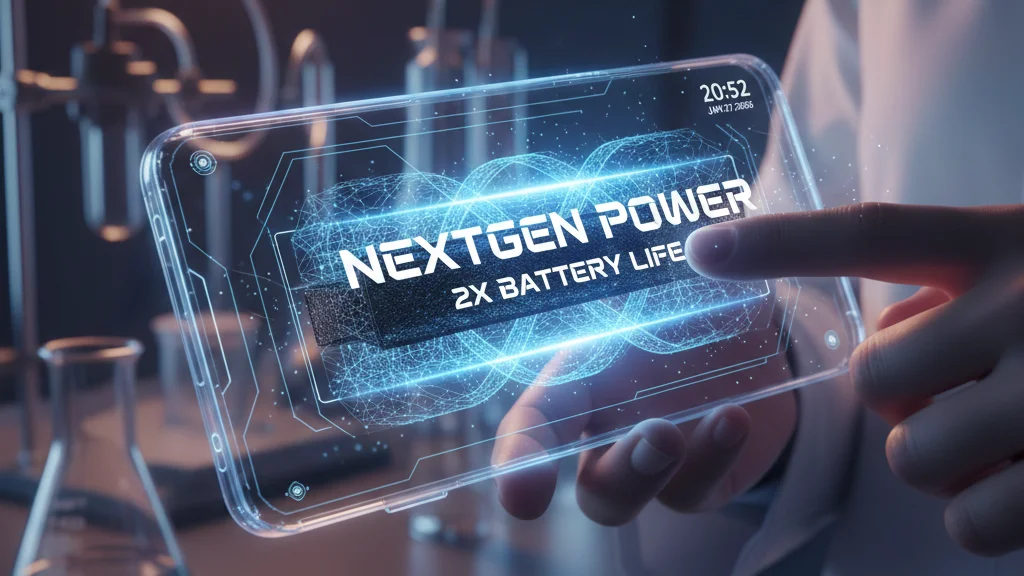
Posted inLatest Mobile Tech New Silicon-Carbon Battery Technology Could Double Smartphone Battery Life Posted by TechGroom January 27, 2026 Smartphone users have long struggled with short battery life, but a new breakthrough may finally…
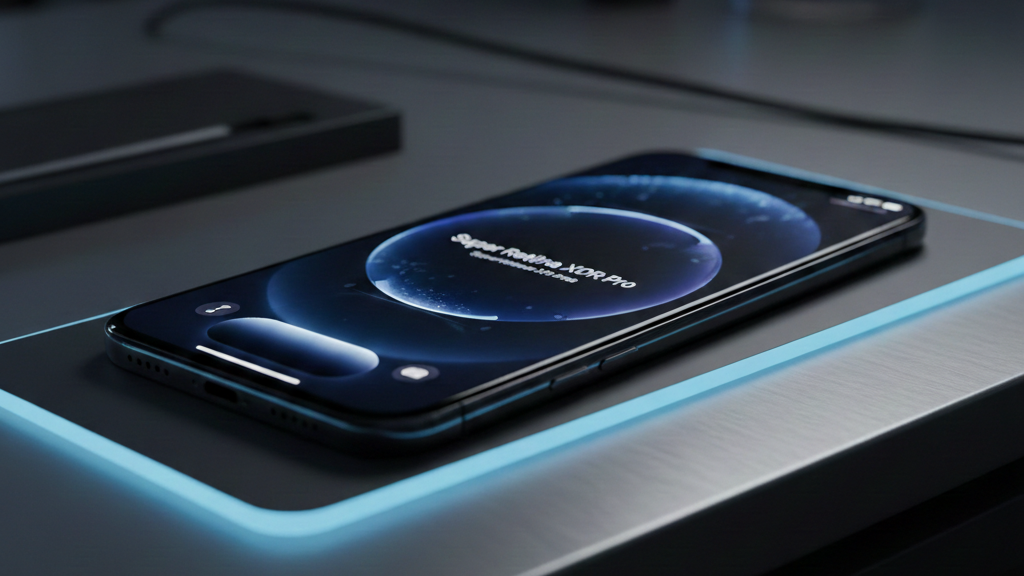
Posted inLatest Mobile Tech iPhone 18 Pro Leak Reveals Smaller Dynamic Island and Display Upgrades Posted by TechGroom January 24, 2026 Apple is expected to launch the iPhone 18 Pro and iPhone 18 Pro Max later…
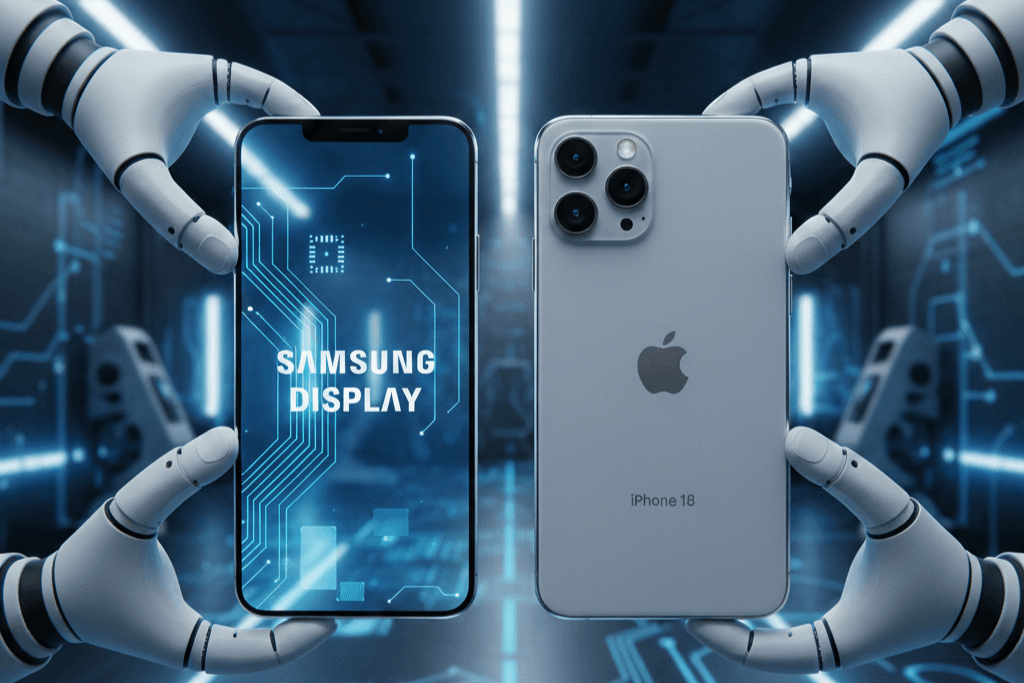
Posted inLatest Mobile Tech Samsung Display to Supply iPhone 18 OLED Screens, Report Says Posted by TechGroom January 23, 2026 Samsung Display iPhone 18 supply plans are taking shape as Apple prepares its next smartphone…
Posted inAuto Latest Tech Volvo Launches EX60 Electric SUV With Google Gemini AI Integration Posted by TechGroom January 23, 2026 Volvo Cars has officially unveiled the Volvo EX60 electric SUV, marking a major step in…
Posted inAI Latest Tech Bessent Warns Taiwan Chip Dependence Risks Economic Apocalypse Posted by TechGroom January 22, 2026 Taiwan chip dependence economic risk is now the world’s most serious supply-chain threat, according to…
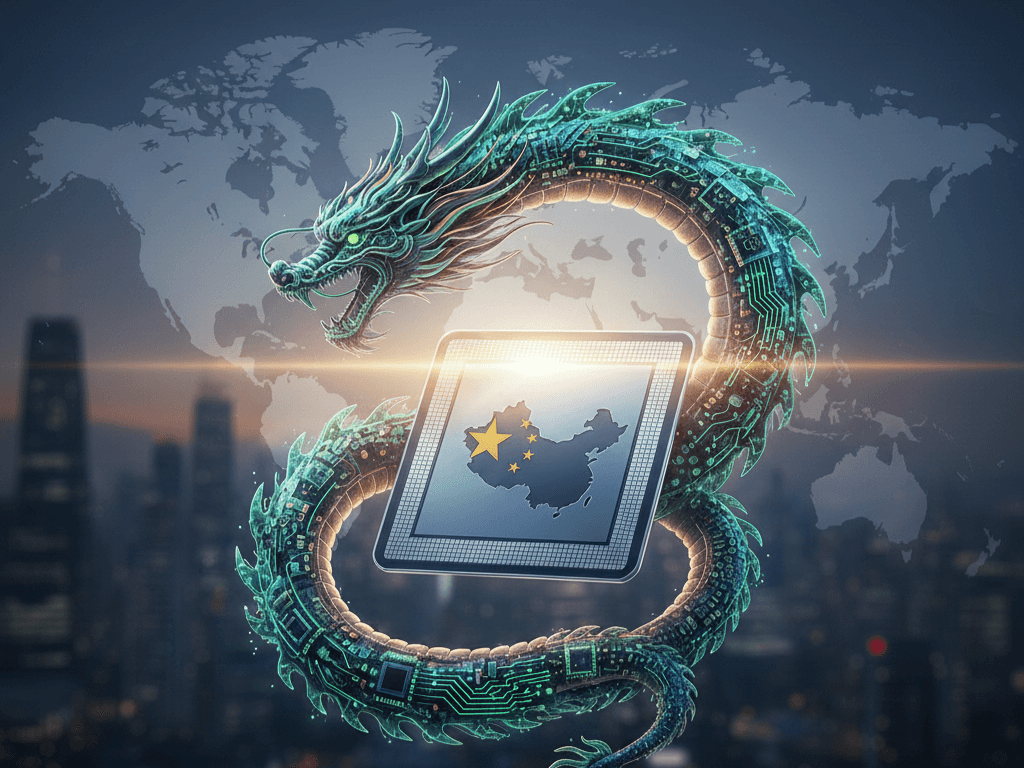
Posted inLatest Tech China’s Semiconductor Breakthrough: Why the West Should Be Paying Attention Now Posted by TechGroom January 20, 2026 China Reduces Reliance on Western Semiconductor Equipment For decades, China relied heavily on Western suppliers…
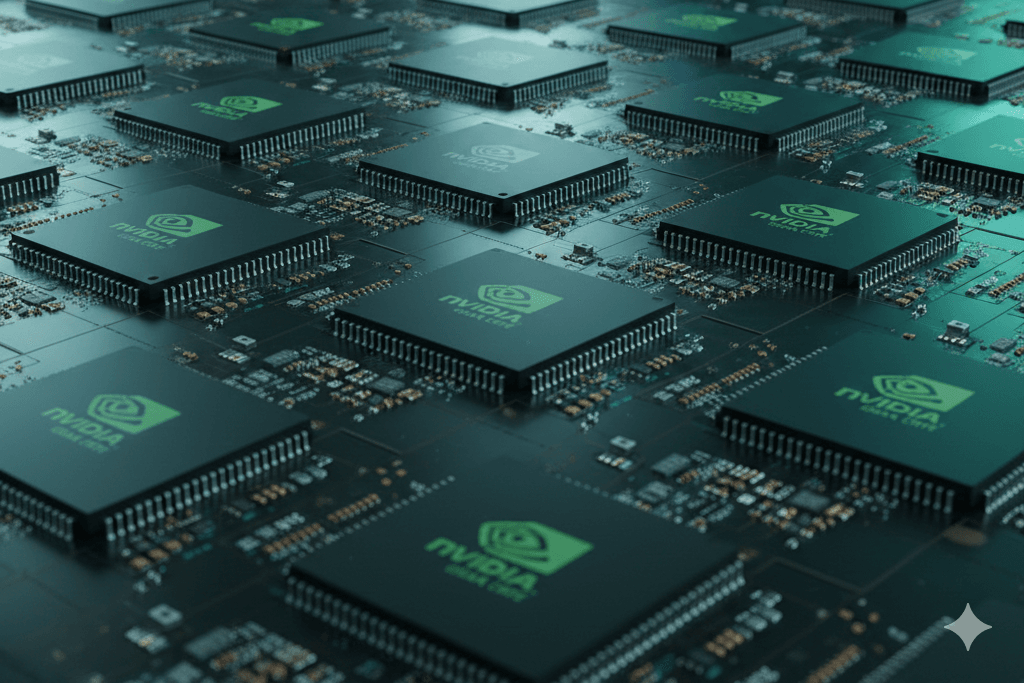
Posted inAI Latest Tech Nvidia H200 Chip China Sales Approved by US Under Strict Rules Posted by TechGroom January 14, 2026 Nvidia H200 chip China sales have officially been approved by the United States, but only…
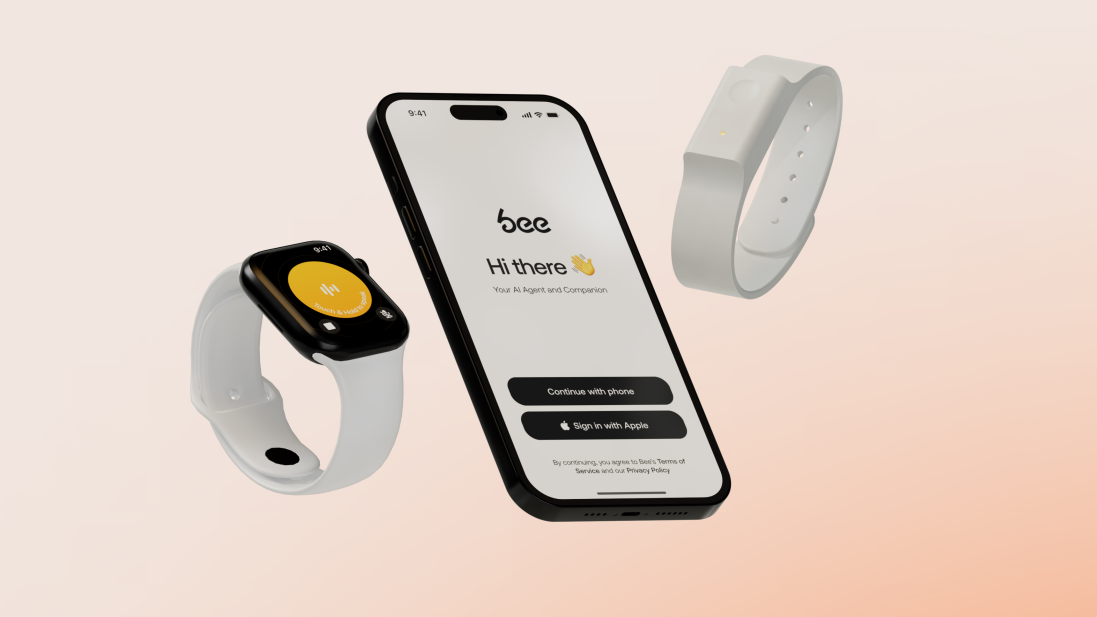
Posted inLatest Tech Why Amazon Bought Bee: The Next Big Leap in AI Wearables Posted by TechGroom January 13, 2026 In a bold move that signals Amazon’s renewed push into AI-powered consumer hardware, the tech…